How to View Notes in PowerPoint while Presenting


View speaker notes in PowerPoint while presenting to stay organized without displaying them to your audience
How to View Notes in PowerPoint While Presenting
Viewing notes in PowerPoint while presenting allows you to stay organized and focused during your slideshow.
These notes, known as speaker notes, are visible only to the presenter in Presenter View, helping guide your speech without showing them to the audience.
Below is a step-by-step guide to help you effectively view your notes while presenting in PowerPoint.
Step-by-Step Guide to View Notes in PowerPoint While Presenting
Step 1: Add Notes to Your Slides
- Open your PowerPoint presentation.
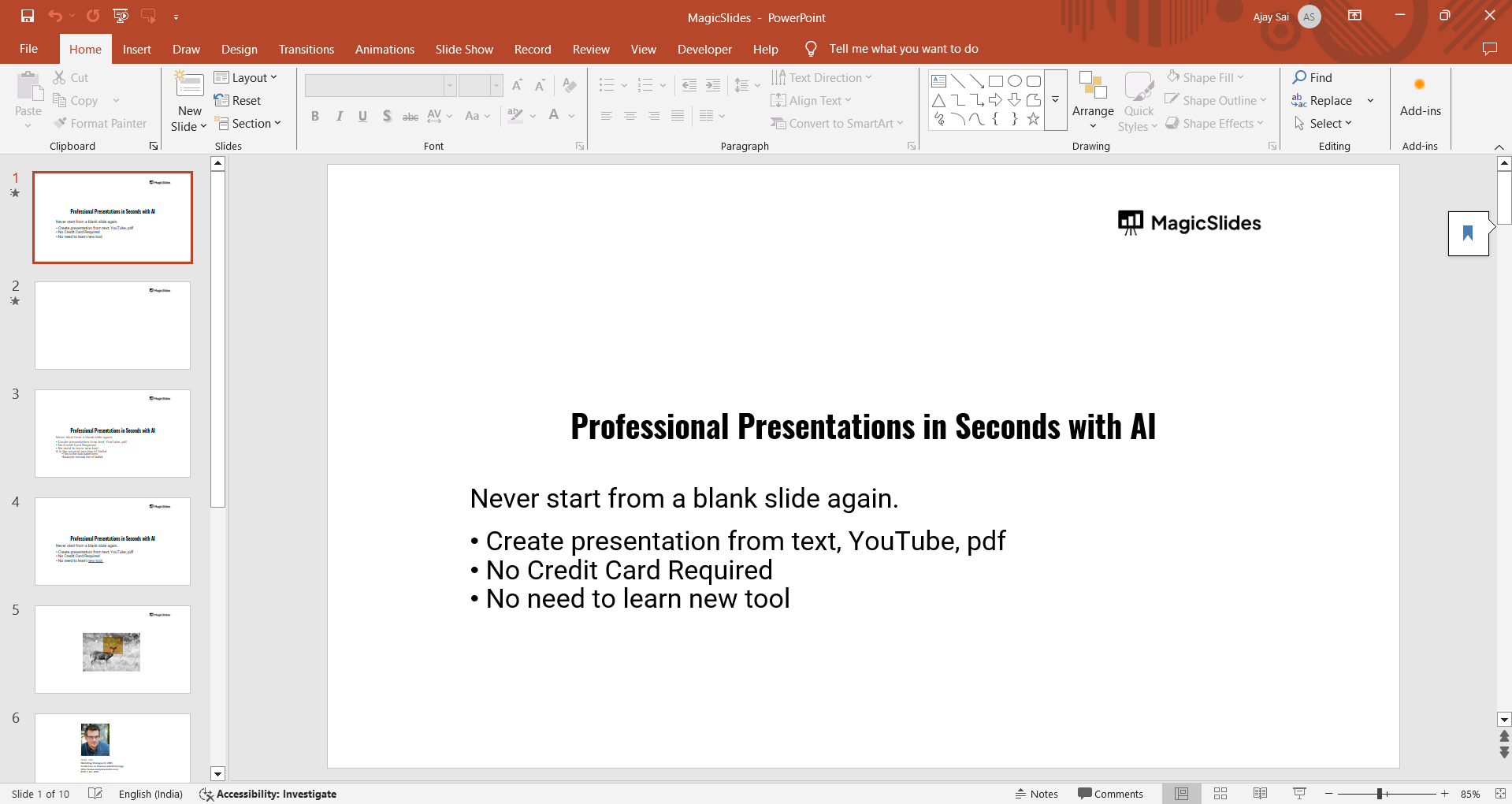
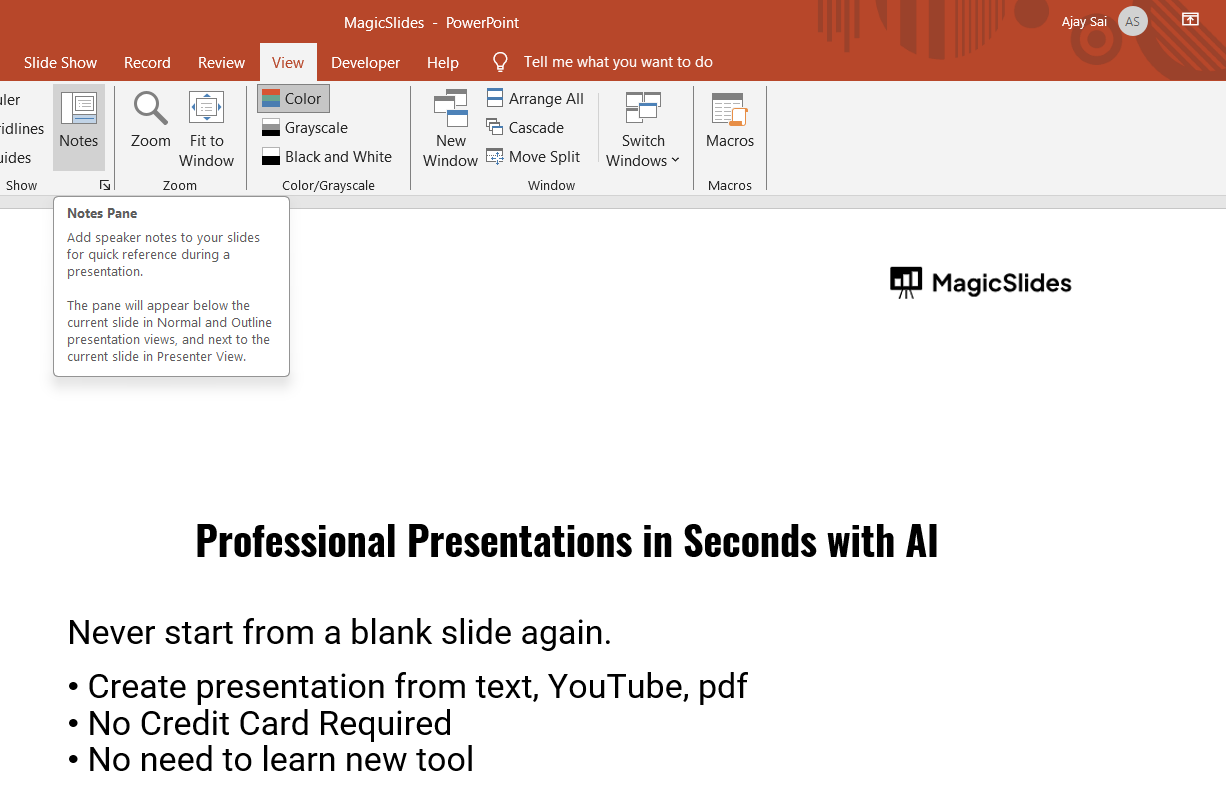
- At the bottom of the screen, you'll find the Notes section. If it’s not visible, click View > Notes to enable it.
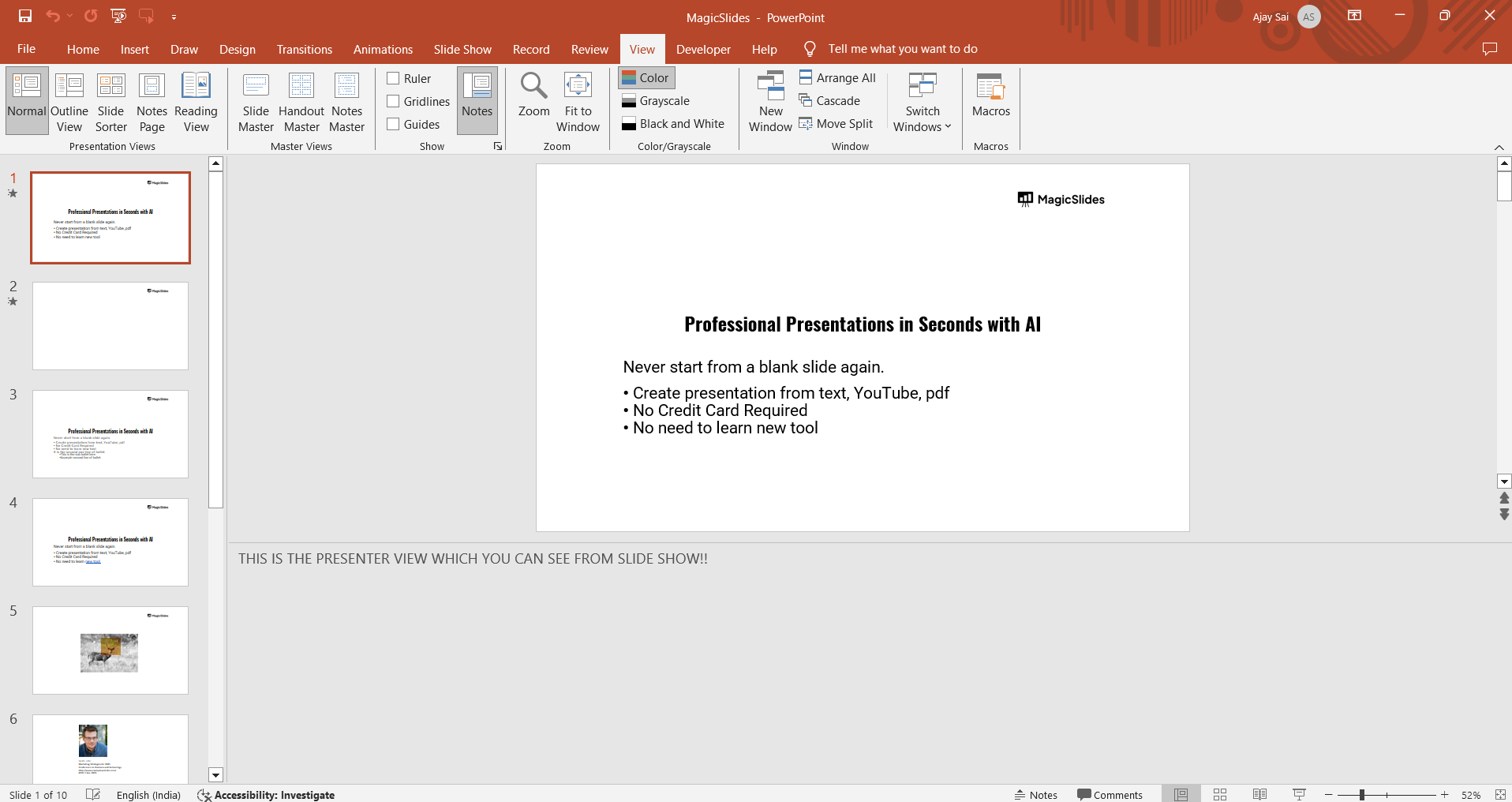
- Click in the Notes area and type in the talking points or reminders you want to use during your presentation.
Step 2: Set Up Presenter View
- Connect your computer to a second screen or projector.
- Go to the Slide Show tab on the ribbon.
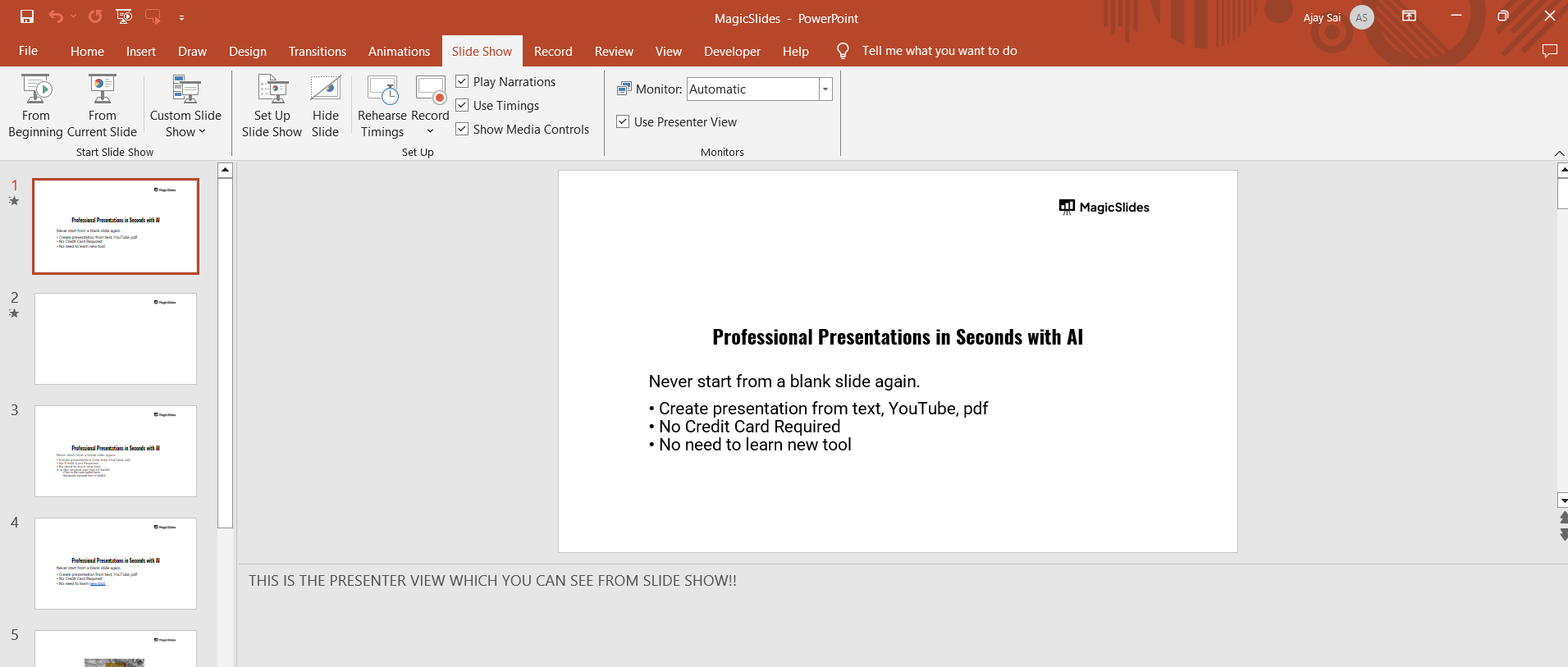
- Ensure that Use Presenter View is checked. This setting allows your notes to appear only on your screen while the full slides are shown on the external display.
Step 3: Start the Slide Show
- Click From Beginning or From Current Slide in the Slide Show tab.
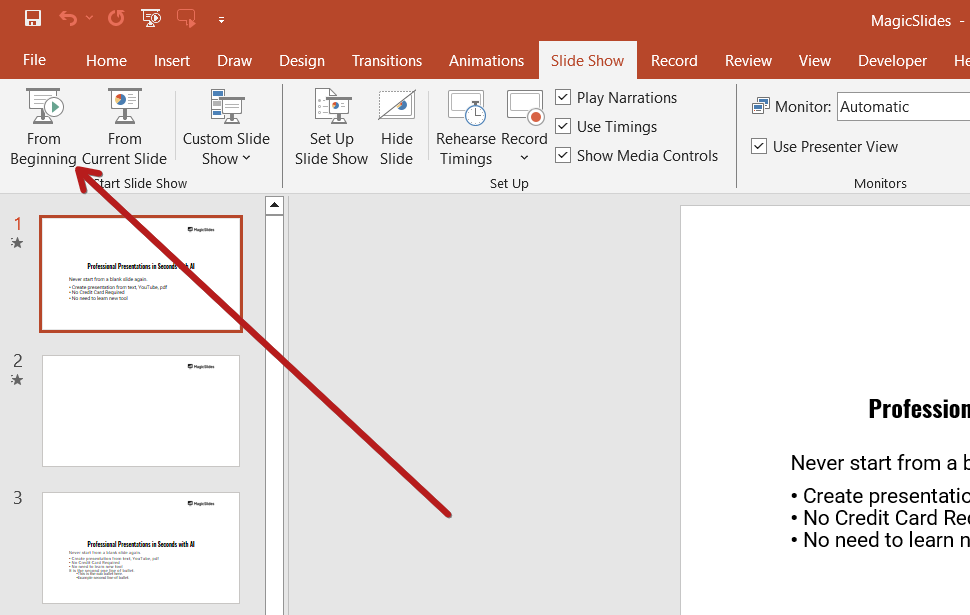
- PowerPoint will detect the dual screen setup and automatically open Presenter View.
Step 4: View Your Notes in Presenter View
- In Presenter View, your current slide appears on the left, and the speaker notes are on the right.
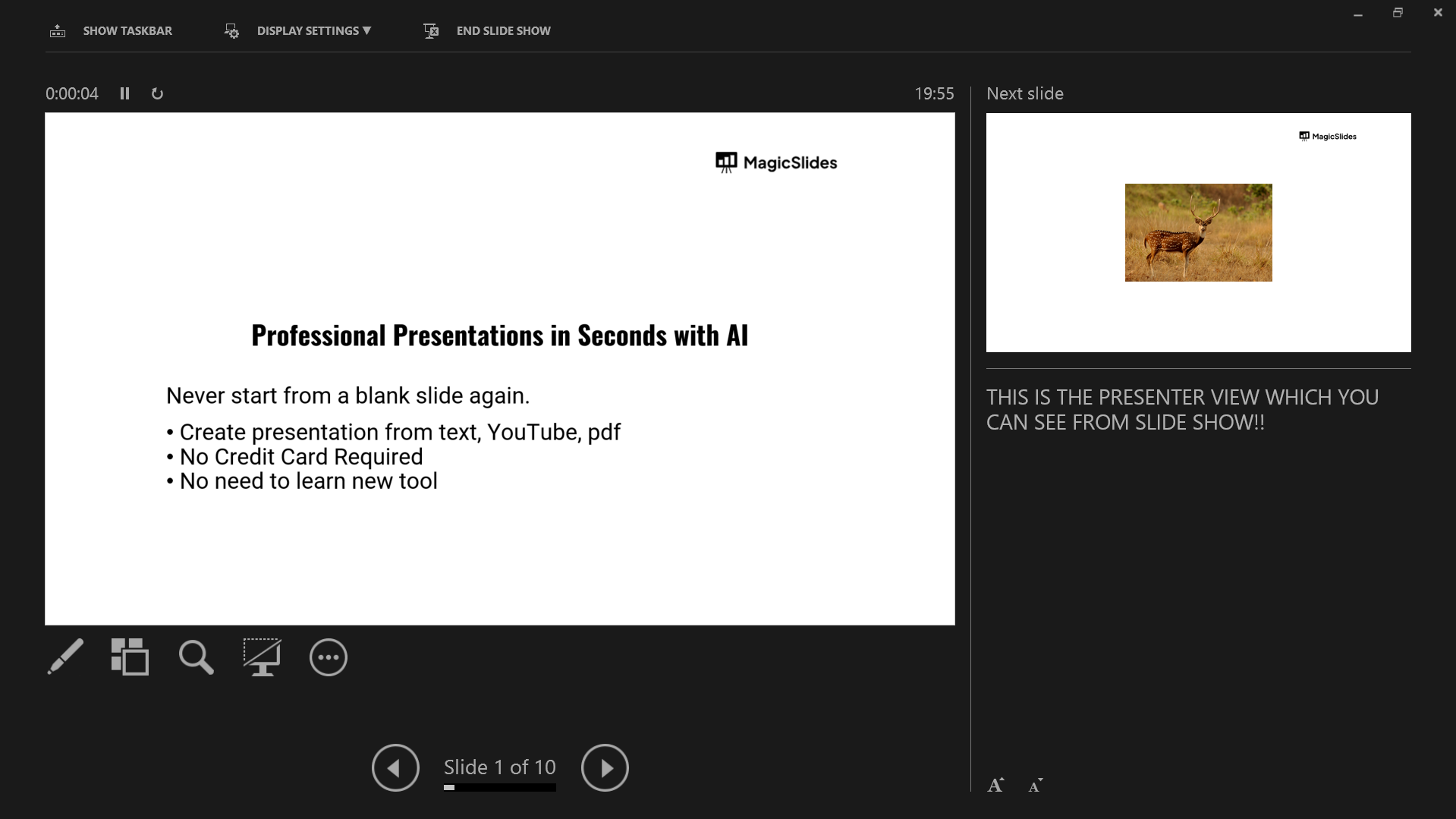
- Upcoming slides are shown as thumbnails below. You can also see the time elapsed and use a laser pointer or pen tool.
- Scroll through your speaker notes or adjust font size using the icons near the notes section.
Step 5: Navigate Slides While Viewing Notes
- Use the arrow keys or on-screen navigation buttons to move between slides.
- Your notes will update automatically with each new slide.
Presenter notes are great for delivering smooth presentations. For even more convenience, use MagicSlides.app an AI tool that creates fully-structured slides (with notes!) from topics, PDFs, or even YouTube links in seconds!
Conclusion
Using Presenter View in PowerPoint lets you deliver a professional presentation while privately viewing helpful notes.
By following these steps, you can keep your flow smooth, stay on topic, and engage your audience more confidently.
FAQs are here to help!
Can I view notes without a second screen?
Yes, but you’ll need to open the notes separately. Without dual monitors, Presenter View won’t launch automatically.
How do I print slides with notes?
Go to File > Print, then choose Print Layout > Notes Pages. This will print each slide with its corresponding notes.
Why can't I see Presenter View?
Ensure your computer detects a second display and that Use Presenter View is checked under the Slide Show tab.


