What is a motion path in PowerPoint


Learn how to create dynamic animations by using motion paths in PowerPoint to move objects smoothly
Motion paths in PowerPoint allow you to create custom animations that move objects along a defined path on your slide.
This feature is particularly useful when you want to bring life to your presentations by making objects move in a more dynamic and visually appealing way.
In this blog post, we'll explain what a motion path is, how to use it, and guide you through the steps to create and customize motion paths in PowerPoint.
What is a Motion Path in PowerPoint?
A motion path is a type of animation effect in PowerPoint that moves an object from one location to another along a pre-defined or custom path.
This path can be a straight line, curve, or even a complex shape. Unlike basic entrance or exit animations, motion paths give you more control over how an object moves across your slide, allowing you to create engaging and interactive presentations.
Step-by-Step Guide to Using Motion Paths in PowerPoint
Step 1: Open Your PowerPoint Presentation
Start by opening the PowerPoint presentation where you want to add a motion path.
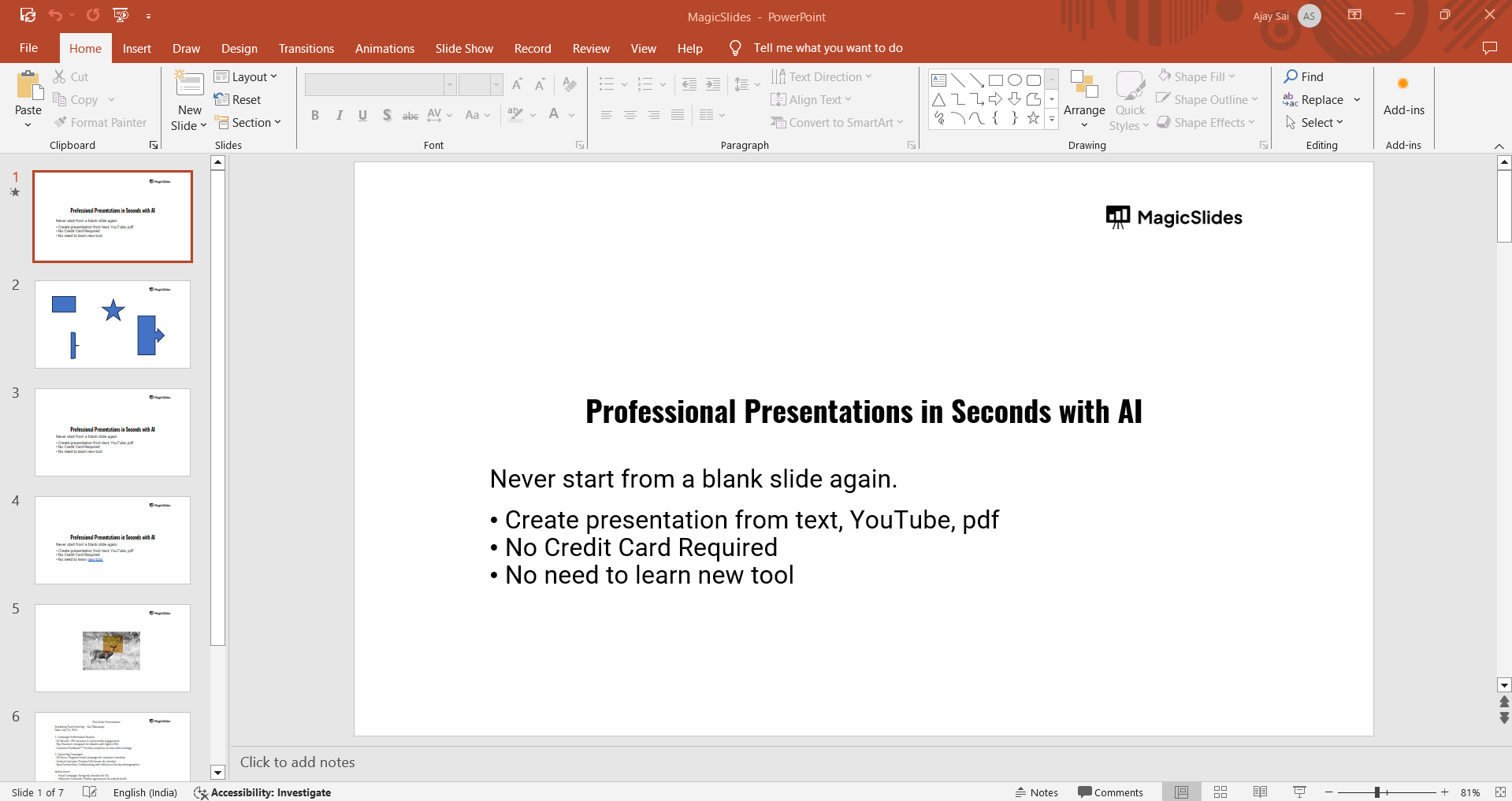
If you don’t have a presentation ready, create a new one by clicking on “Blank Presentation” or by choosing a template.
Step 2: Select the Object to Animate
Next, choose the object you want to animate using a motion path.
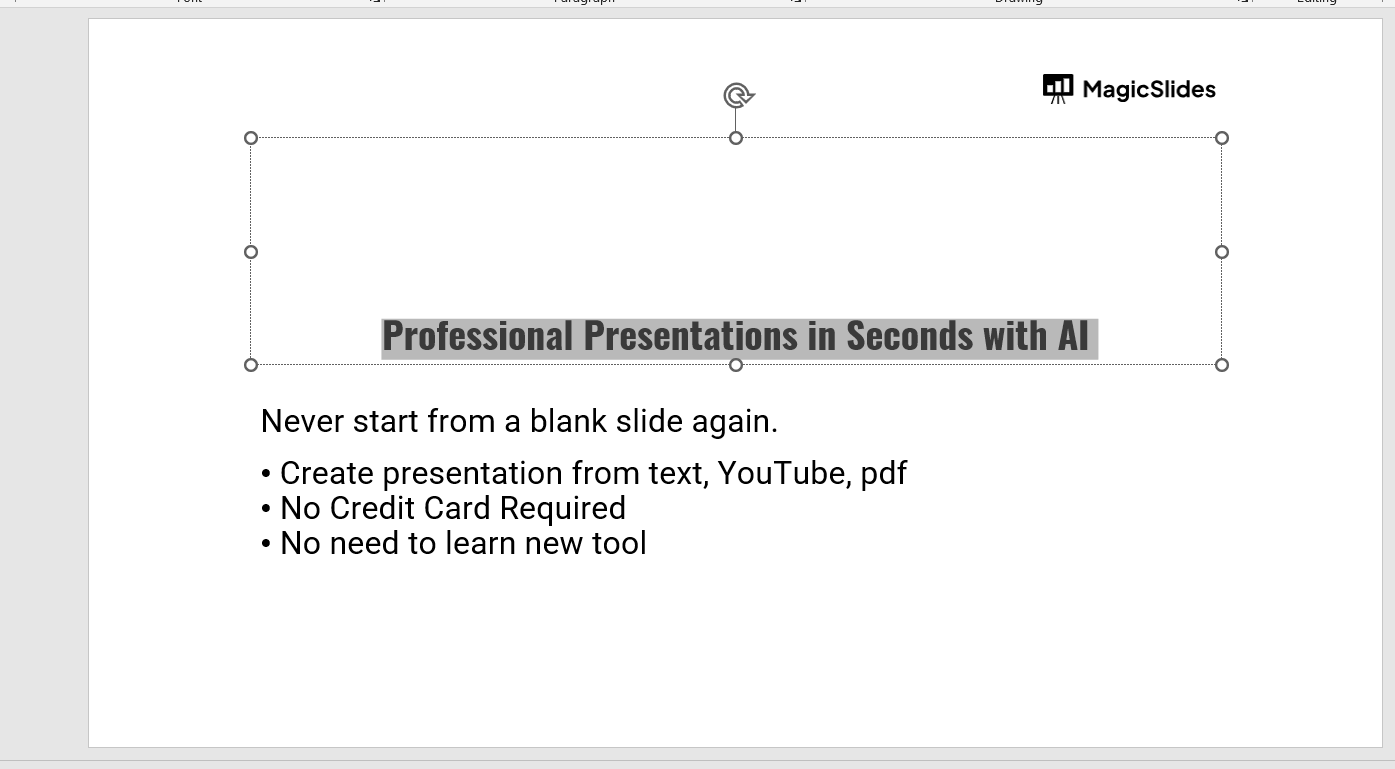
This could be any element on your slide, such as text, shapes, images, or icons. Click on the object to select it.
PowerPoint's Slide Transition feature adds visual effects between slides, enhancing presentation flow and engagement.
Step 3: Go to the Animations Tab
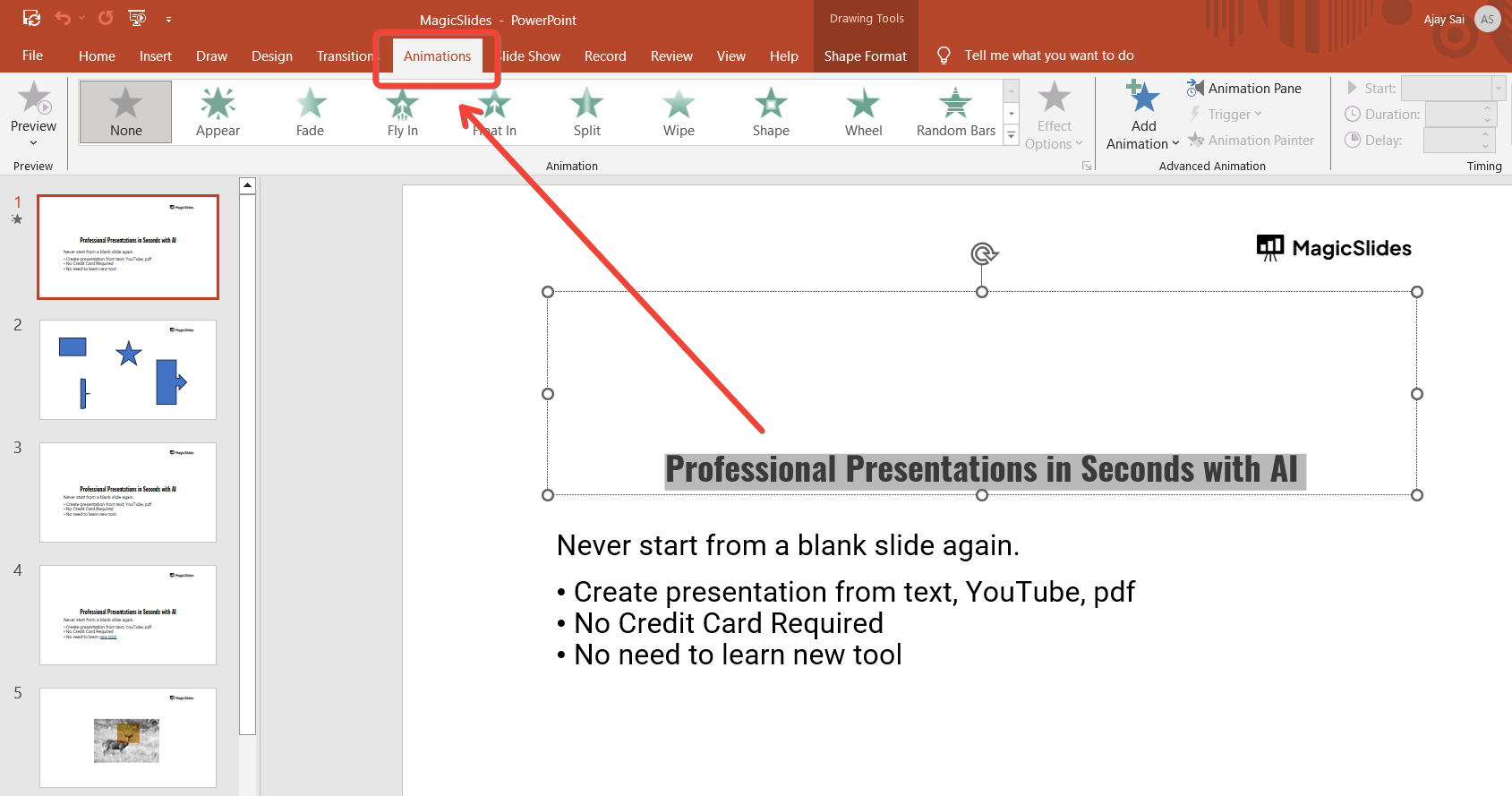
With the object selected, navigate to the "Animations" tab on the PowerPoint ribbon.
This tab contains various animation effects, including the options for motion paths.
Step 4: Choose a Motion Path
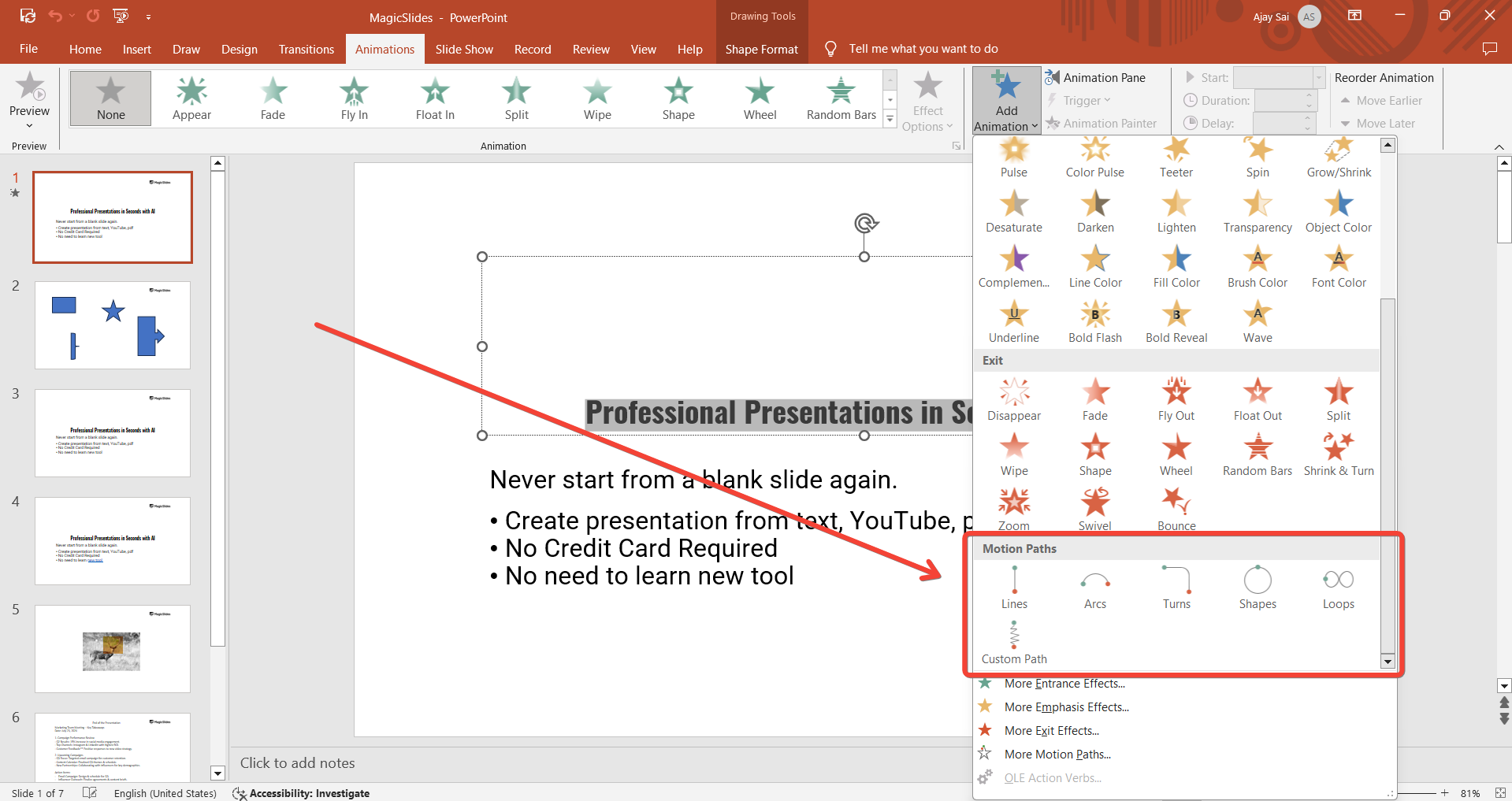
In the "Animations" tab, click on the “Add Animation” drop-down menu to see the available animation options. Scroll down to the "Motion Paths" section.
You’ll see several predefined paths like "Lines," "Arcs," "Turns," and "Loops." Choose the path that best fits the movement you want to create.
Step 5: Customize the Motion Path
Once you’ve applied a motion path, you can customize it further.
Click on the "Effect Options" button to change the direction, starting point, or endpoint of the path.
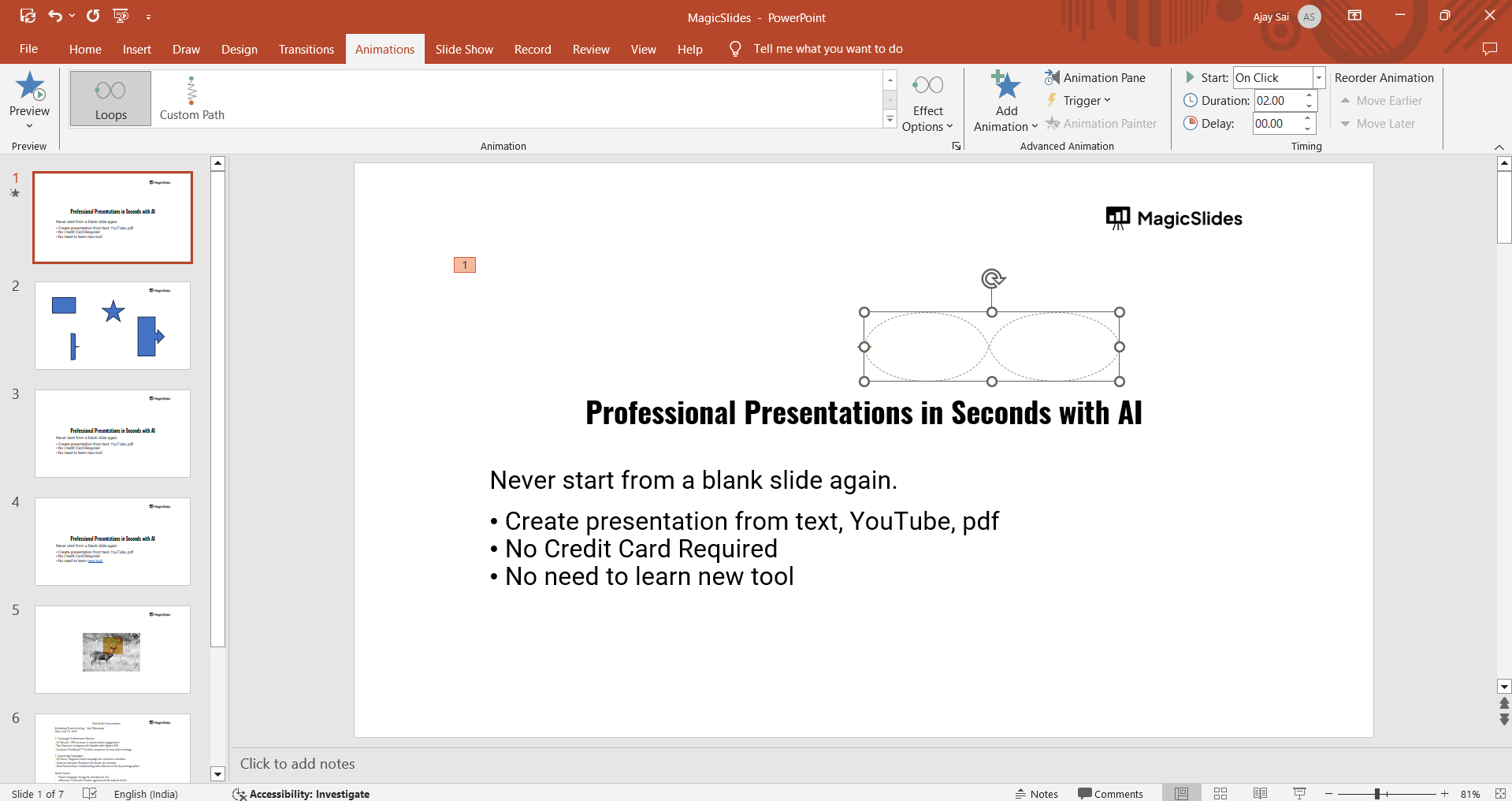
You can also manually adjust the path by clicking and dragging its endpoints on the slide.
Step 6: Adjust Timing and Effects
After setting up the motion path, you can adjust the timing and add effects.
Go to the "Timing" section in the "Animations" tab to set when the motion path starts, how long it lasts, and whether it repeats.
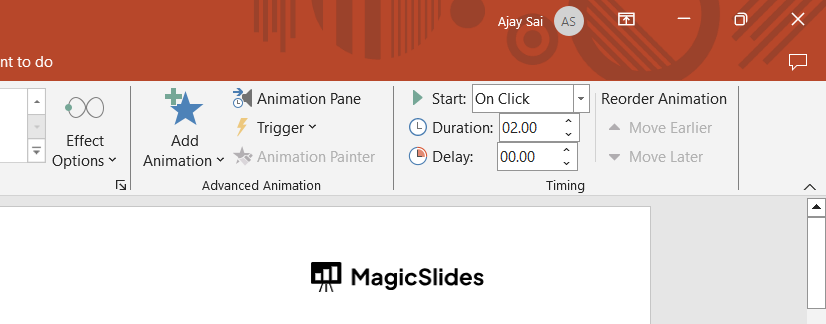
You can also add additional effects, such as acceleration or deceleration, to enhance the motion.
Step 7: Preview the Animation
Before finalizing your motion path, it’s important to preview the animation to see how it looks in action.
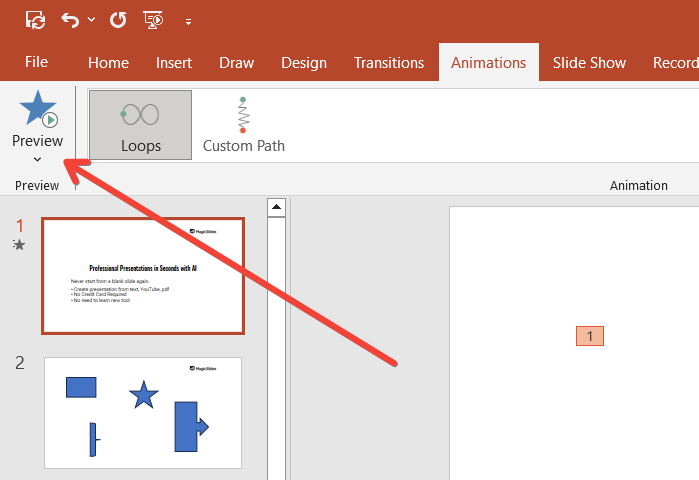
Click on the "Preview" button in the "Animations" tab to watch the motion path animation on your slide.
Make any necessary adjustments to ensure the movement is smooth and fits your presentation’s flow.
Conclusion
Motion paths in PowerPoint are a powerful tool for creating dynamic and engaging presentations.
By following these steps, you can easily add custom animations that bring your slides to life, making them more interactive and visually appealing.
Whether you're presenting complex data or telling a story, motion paths can help you guide your audience's attention and enhance your overall message.
Tired of maing presentations? what if we tell you you can make presentation with just a prompt, convert YouTube videos to PPTs, convert website content to PPTs? Yes! checkout magicslides.app that does all and enjoy the free credits to make presentations in seconds.
FAQs are here to guide you!
Can I create a custom motion path in PowerPoint?
Yes, you can create a custom motion path by selecting "Custom Path" from the motion paths options and drawing your own path on the slide.
Can I combine motion paths with other animations?
Absolutely! You can combine motion paths with other entrance, emphasis, or exit animations to create more complex effects.
How do I remove a motion path in PowerPoint?
To remove a motion path, select the animated object, go to the "Animations" tab, and click on "None" in the animation options.


