How to apply split transition in powerpoint


Revamp your presentations with a split transition transform static slides into dynamic visual stories effortlessly.
Unlock the captivating world of PowerPoint transitions as we delve into creating a split-like effect. Elevate your presentations and captivate your audience with this step-by-step guide on infusing energy and dynamism into your slides. Get ready to transform your static slides into engaging visual journeys.
How to apply split transition in powerpoint
Open Your PowerPoint Presentation:
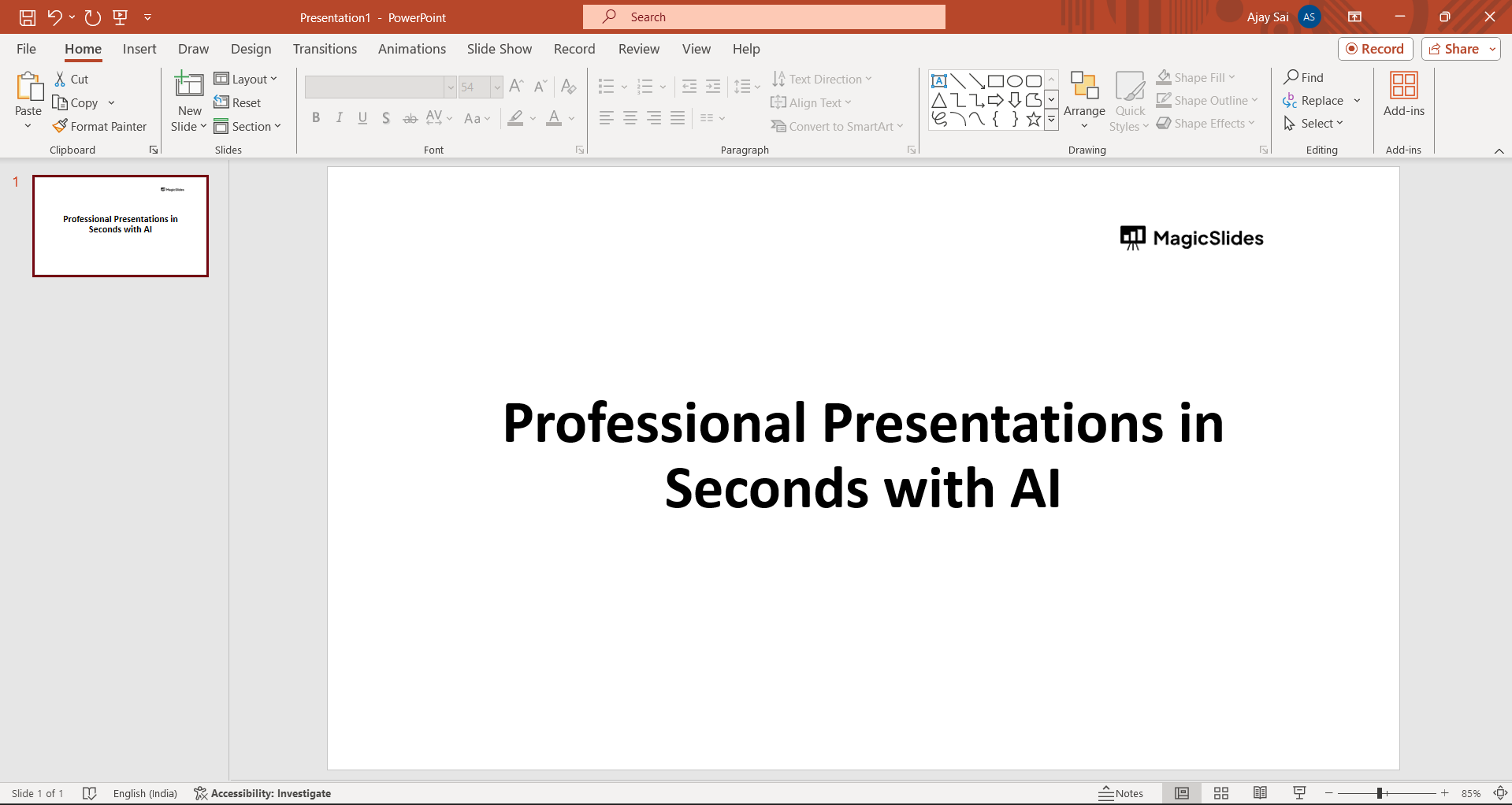
Launch PowerPoint and open the presentation where you want to apply the split transition.
Go to the Slide Sorter View:
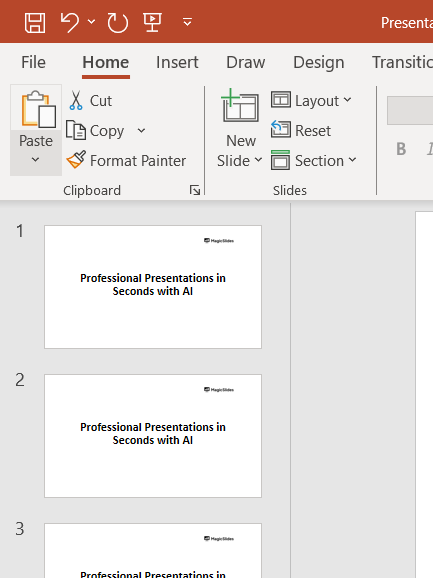
In the bottom-right corner of the screen, click on the "Slide Sorter" view. This allows you to see all your slides at once.
Select the Slide:
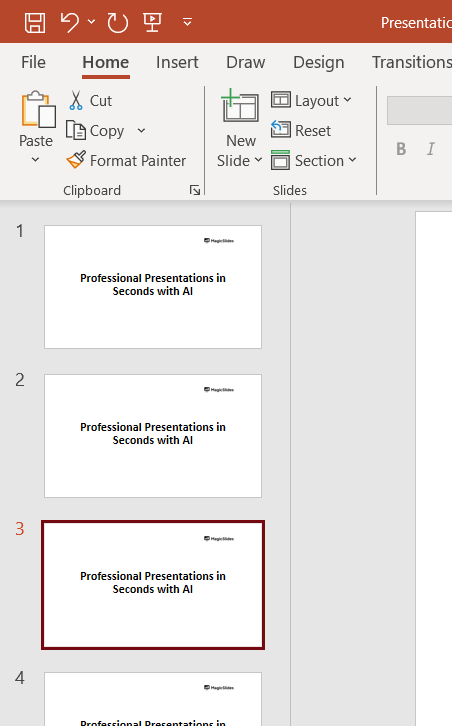
Click on the slide where you want to apply the split transition effect.
Access the "Transitions" Tab:
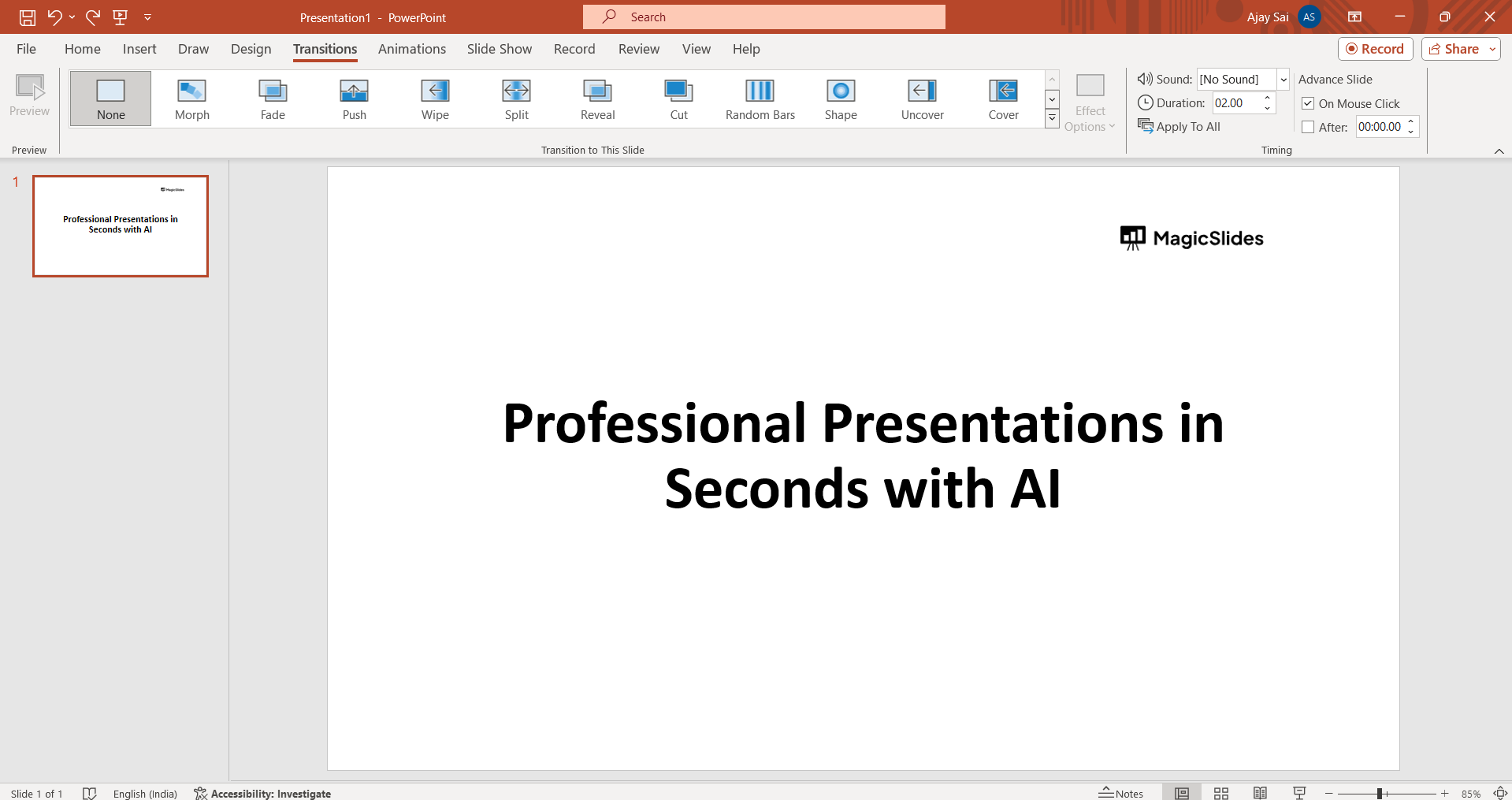
Switch to the "Transitions" tab in the PowerPoint Ribbon.
Choose an Entrance Animation:
Under the "Transition to This Slide" group, choose an entrance animation. For example, you can use "Split" or "Peek In."
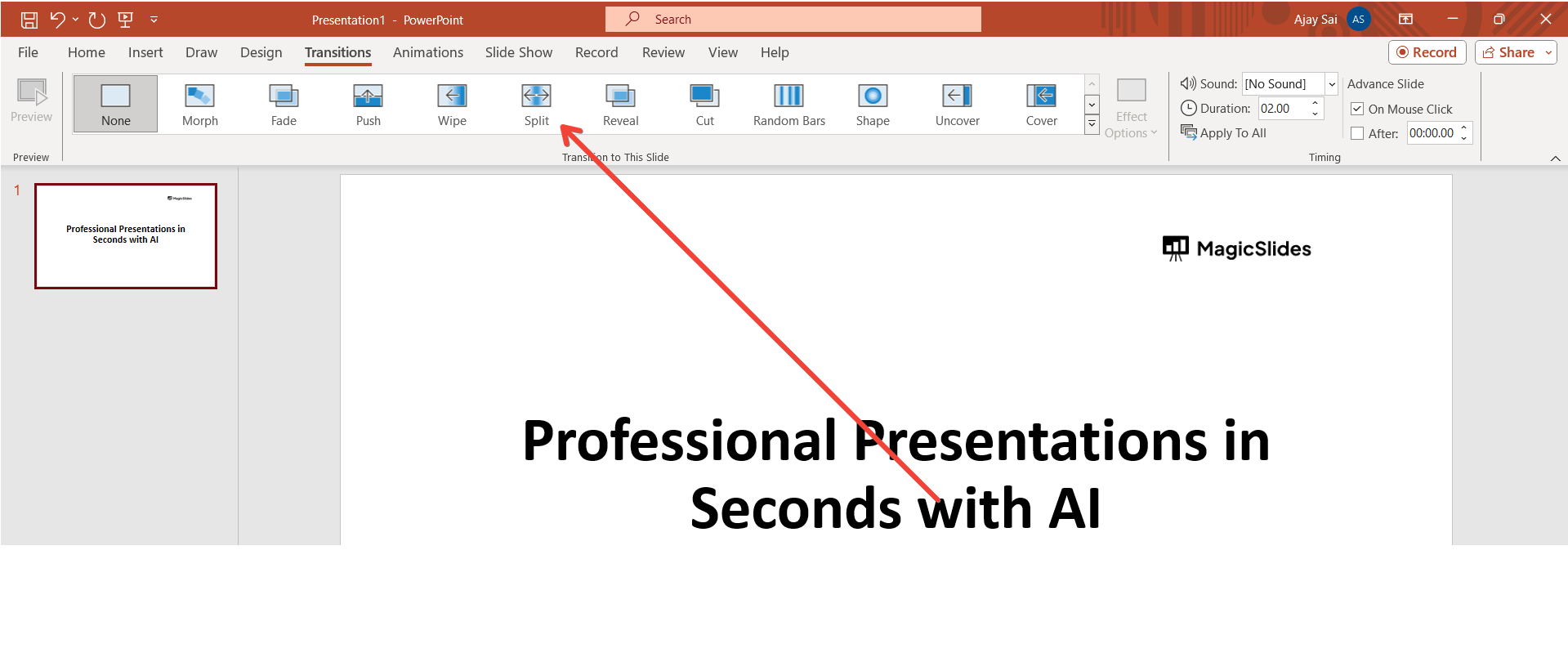
Adjust the Animation Options:
Click on the small arrow next to the selected animation to open the options. Customize the direction, duration, or other settings as needed.
Preview the Transition:
Click the "Preview" button to see how the transition looks. Make adjustments until you are satisfied.
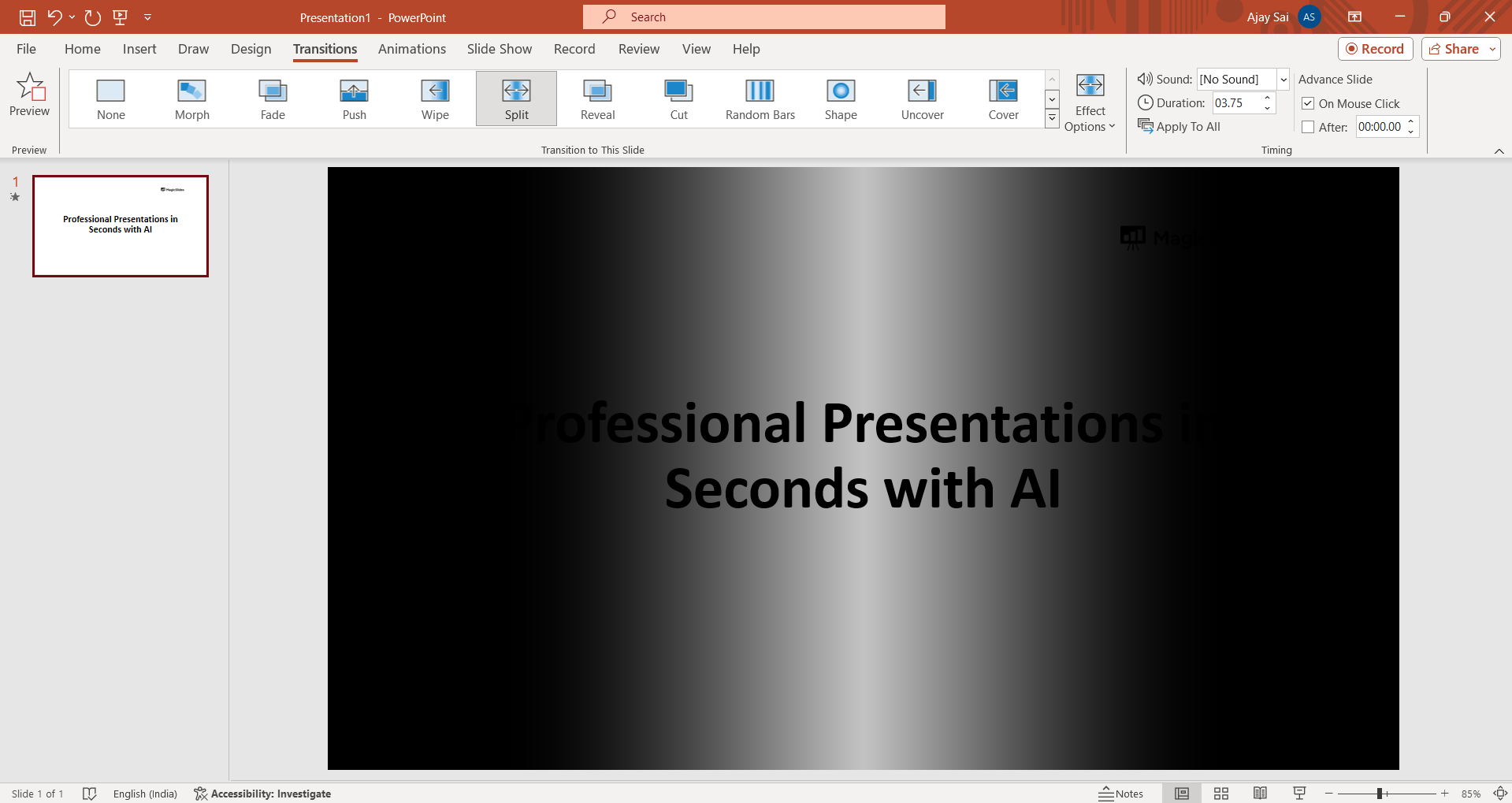
Repeat for Other Slides (Optional):
If you want the split transition effect on multiple slides, repeat the process for each slide.
Conclusion 💁♂️:
In the realm of presentation design, the split transition effect stands as a versatile tool, adding flair and professionalism to your slides. Armed with the insights from this guide, you now possess the skills to craft presentations that not only convey information but also captivate and impress. Step into the spotlight with your newfound PowerPoint prowess and make every slide a memorable experience for your audience.
Frequently Asked Questions 🤔:
Q: Can I apply split transitions to specific elements on a slide rather than the entire slide? Ans: PowerPoint's transitions typically apply to the entire slide, but you can simulate a split effect with careful content arrangement.
Q: Are split transitions suitable for all types of presentations? Ans: While dynamic, split transitions are best used sparingly to enhance specific points or engage the audience.
Q: How can I ensure a smooth and professional look when using split transitions? Ans: Practice moderation, fine-tune transition speed, and maintain consistency to ensure a polished and impactful presentation.
Check out these info blogs by us:
- How To Use Microsoft Dictate In Desktop PowerPoint: https://www.magicslides.app/blog/how-to-use-microsoft-dictate-in-desktop-powerpoint
- How To Rename A Slack Channel On Desktop: https://www.magicslides.app/blog/how-to-rename-a-slack-channel-on-desktop
- How To Change Layout Of A Powerpoint Presentation: https://www.magicslides.app/blog/how-to-change-layout-of-a-powerpoint-presentation
- How To Reset A Presentation In Powerpoint: https://www.magicslides.app/blog/how-to-reset-a-presentation-in-powerpoint


