How to add a Push Transition in PowerPoint


Enhance PowerPoint presentations with dynamic flair by learning to add engaging push transitions for visual appeal.
Elevate the visual dynamics of your PowerPoint presentation by incorporating engaging transitions. Adding a push transition not only introduces a seamless flow between slides but also captivates your audience's attention. Here's a simple guide to help you integrate a push transition and enhance the overall impact of your presentation.
How to add a Push Transition in PowerPoint
Open PowerPoint desktop app:
Launch Microsoft PowerPoint and open the presentation you're working on.
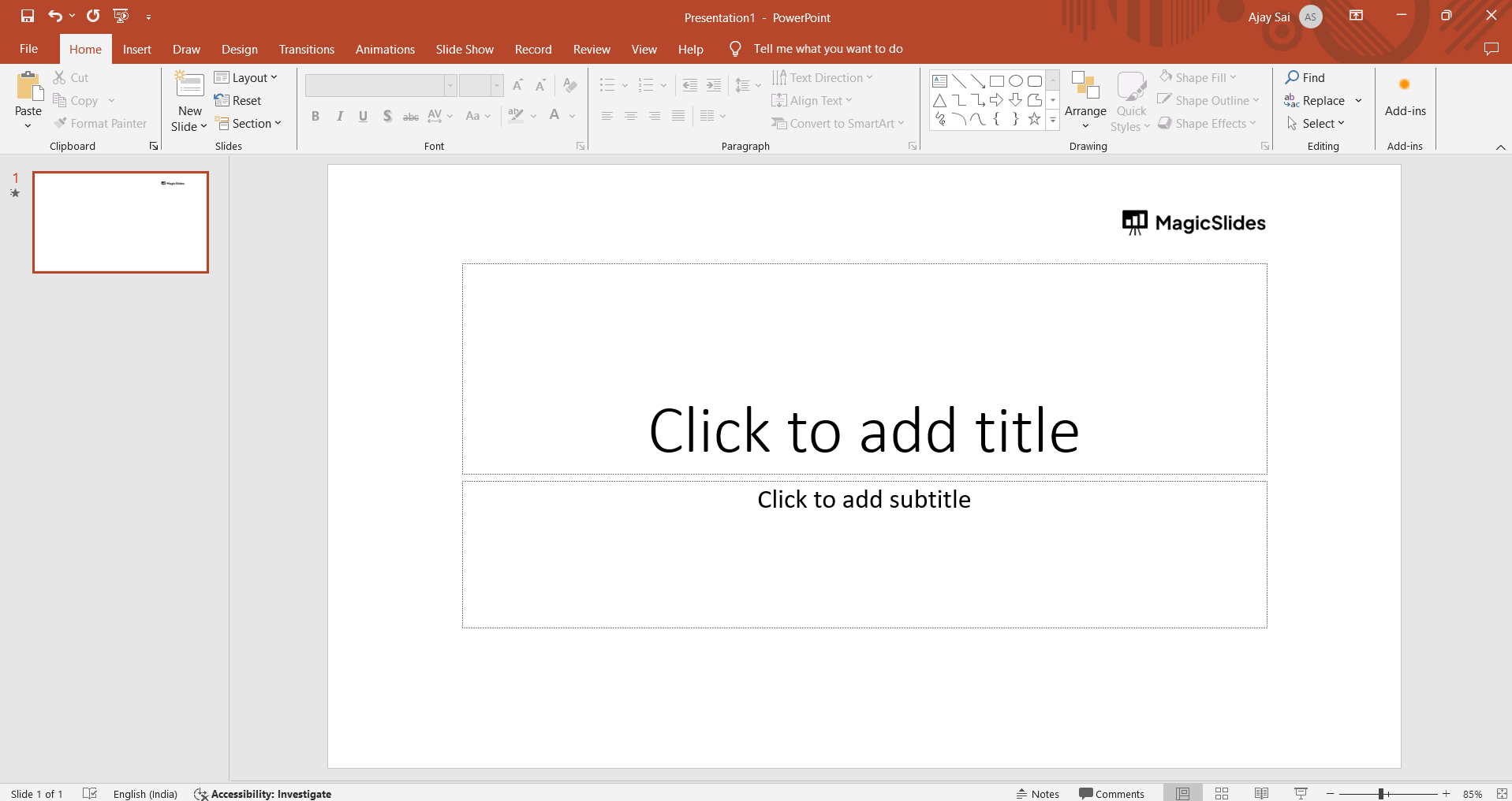
Go to the Slide Sorter View:
Click on the "View" tab in the PowerPoint ribbon. Select "Slide Sorter" from the View options.
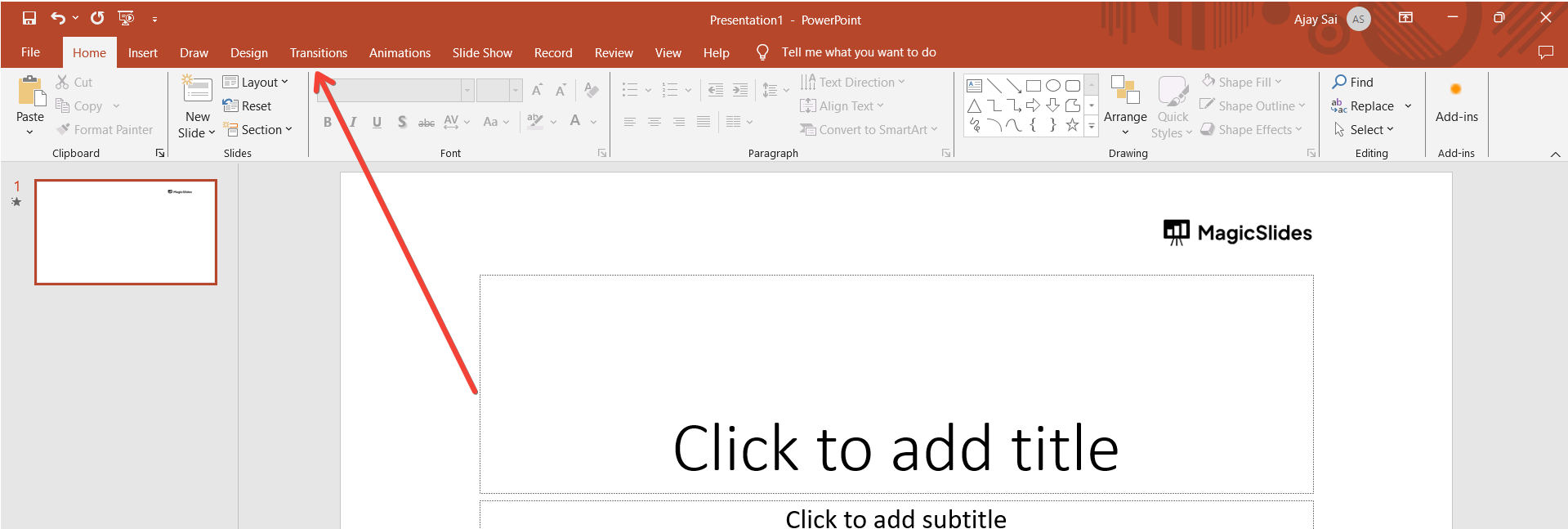
Choose the Push Transition:
In the Transition to This Slide group, locate the "Push" transition. Click on the dropdown arrow next to "Transition" to see a list of available transitions.
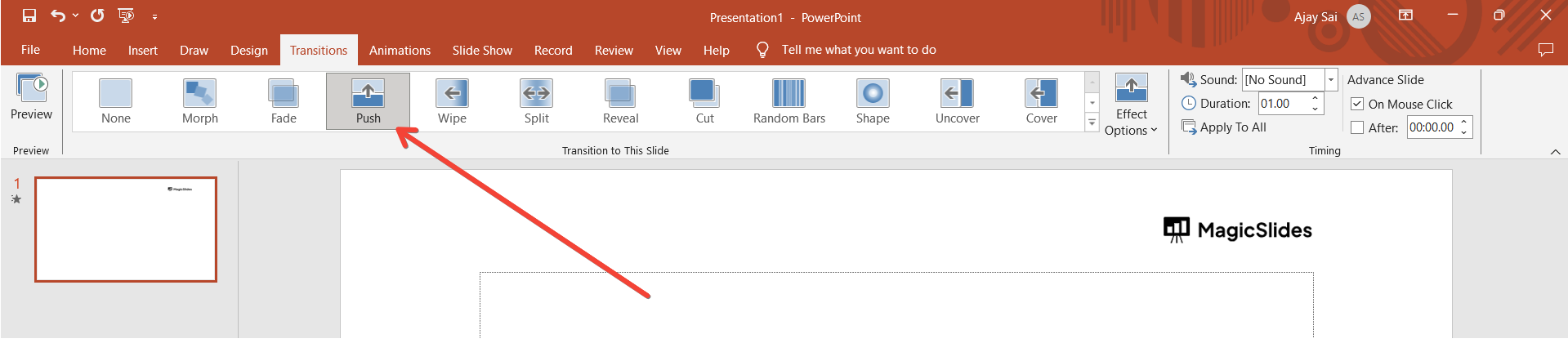
Specify the Direction of the Push:
After selecting "Push," a direction dropdown menu will appear. Choose whether you want the push to occur from the left, right, up, or down.
Set Transition Options (Optional):
You can further customize the transition by adjusting options like speed and sound. These options are usually located in the "Transition to This Slide" group.
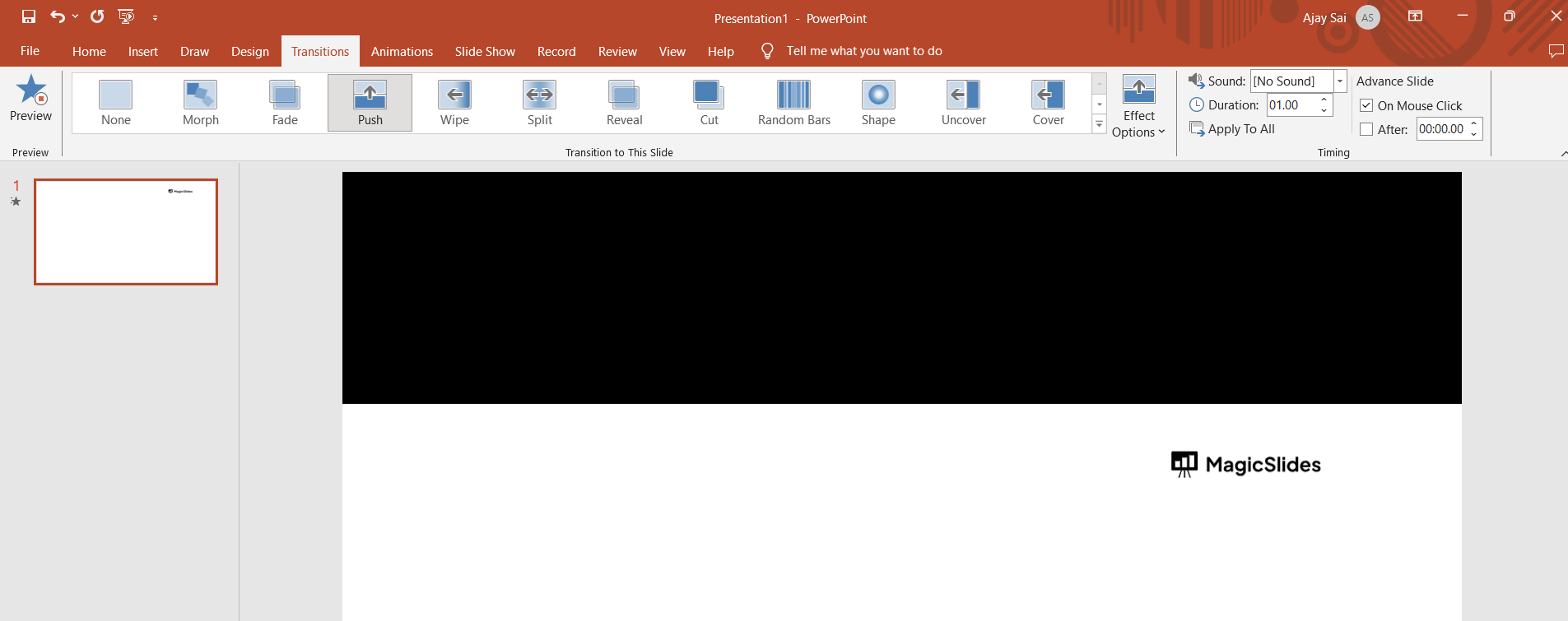
Preview the Transition:
To see how the push transition looks, click on the "Slide Show" button in the bottom-right corner of the PowerPoint window. Navigate to the slide you modified to observe the push transition.
Save Your Presentation:
Once you are satisfied with the transition, save your PowerPoint presentation.
Conclusion:
By following these steps, you can easily add a push transition to a specific slide in your PowerPoint presentation, enhancing the visual appeal during your slideshow. Mastering PowerPoint transitions, such as the push effect, empowers you to deliver more polished and visually appealing presentations. By following these steps, you can effortlessly incorporate push transitions, injecting a dynamic and professional touch to your slideshows. Engage your audience and leave a lasting impression with these simple yet effective enhancements.
Frequently Asked Questions:
Q: Can I apply different push directions to different slides in my PowerPoint presentation?
Ans: Yes, you can customize the push direction individually for each slide by selecting the desired direction in the transition options.
Q: Do push transitions work in both standard and widescreen PowerPoint presentations?
Ans: Yes, push transitions are versatile and work seamlessly in both standard (4:3) and widescreen (16:9) PowerPoint presentations.
Q: Can I adjust the speed of the push transition in PowerPoint?
Ans: Yes, you can modify the transition speed. In the Transition tab, find the "Duration" dropdown to select the desired speed for the push transition.
Have a look @these informative blogs by us:
- How To Create PPTs For Seminar Topics From Website URL: https://www.magicslides.app/blog/how-to-create-ppts-for-seminar-topics-from-website-url
- How To Convert A Research Paper PDF To PowerPoint Slides?: https://www.magicslides.app/blog/how-to-convert-a-research-paper-pdf-to-powerpoint-slides
- How To Remove An App From Slack: https://www.magicslides.app/blog/how-to-remove-an-app-from-slack
- How To Convert Blog Post To Presentations: https://www.magicslides.app/blog/how-to-convert-blog-post-to-presentations


