How to apply layout in Google Slides


Elevate your Google Slides game by mastering layouts transforming content into visually compelling presentations effortlessly.
Creating a compelling presentation involves more than just adding content; it's about structuring information in a visually engaging way. Google Slides offers a versatile range of layouts to help you achieve this. By following these straightforward steps, you can not only streamline your content but also enhance the overall aesthetics of your presentation.
How to apply layout in Google Slides
Open Your Presentation:
Begin by accessing your Google Slides presentation. Whether you're starting a new project or fine-tuning an existing one, the layout options can be applied to individual slides or the entire presentation.
Select a Slide:
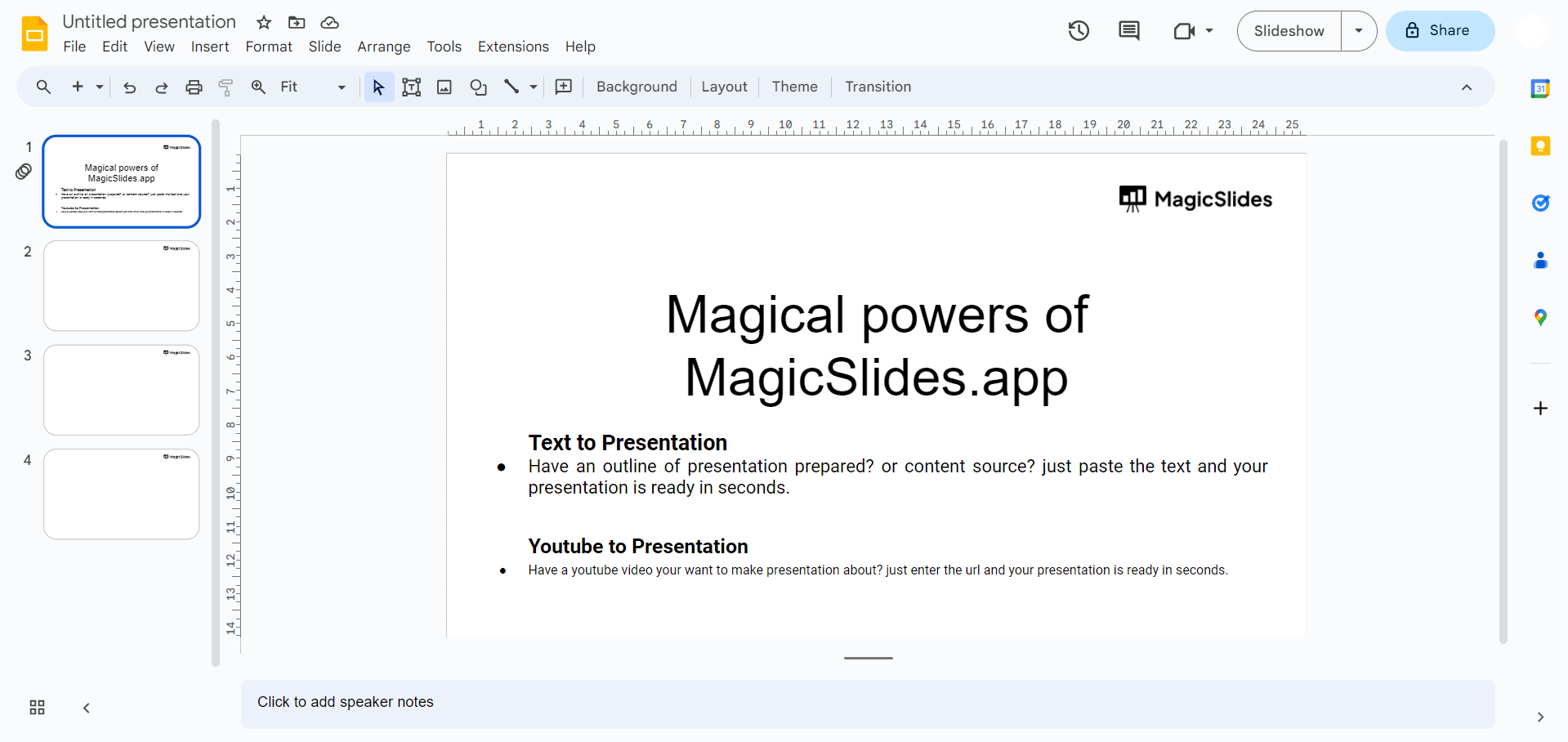
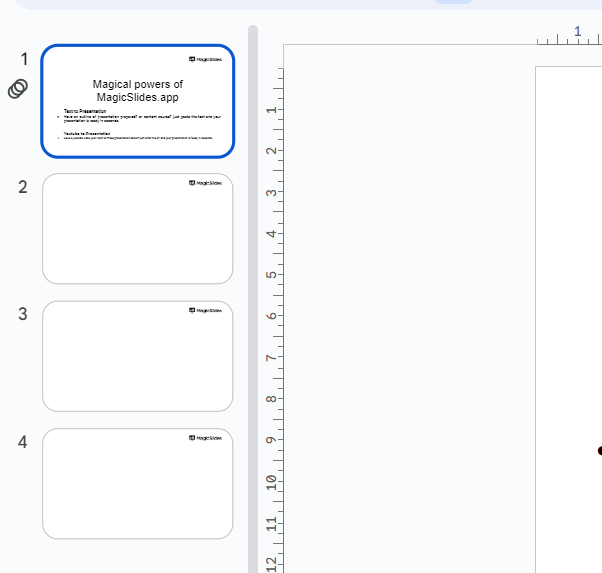
Identify the specific slide or slides that need a layout makeover. Click on the desired slide in the left sidebar. If you want a consistent layout across all slides, you can skip this step.
Access the Layout Menu:
The "Slide" option at the top menu is your gateway to layouts. Click on it, and a dropdown menu will unfold, revealing a variety of options to organize your content effectively.
Choose "Layout":
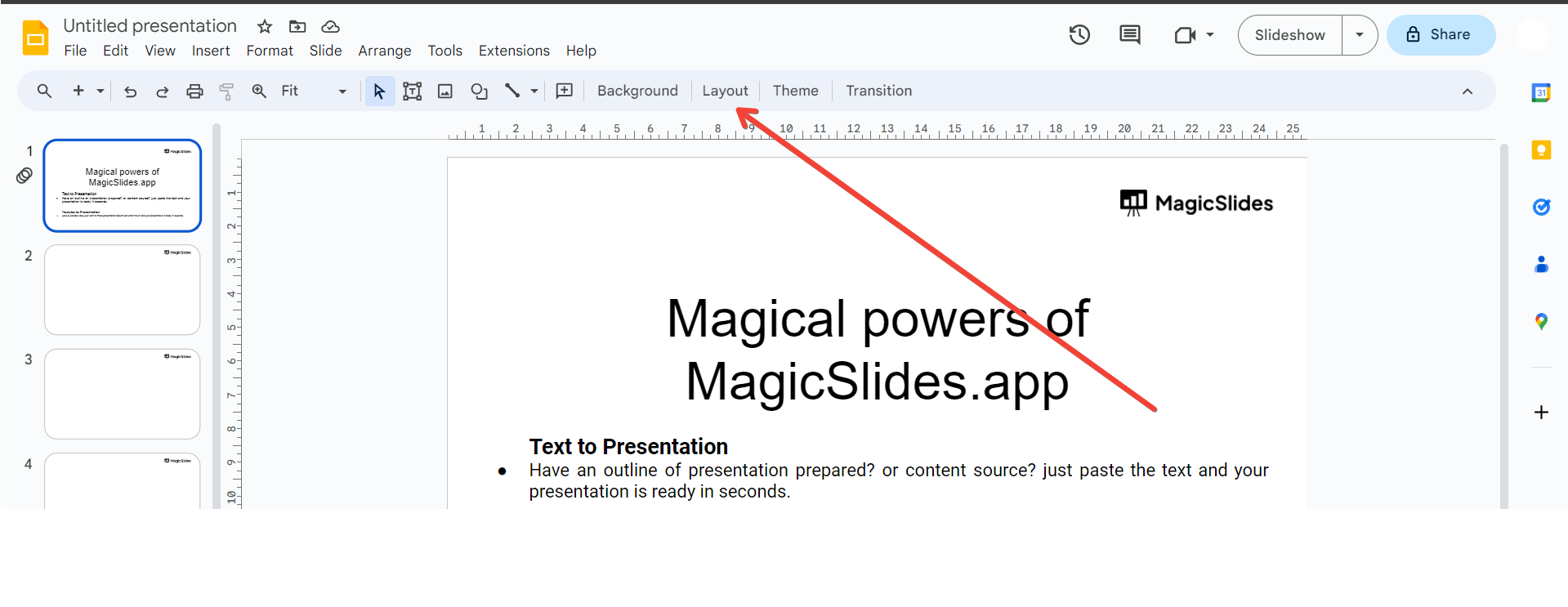
Hover over the "Layout" option in the dropdown menu. This action prompts a sub-menu displaying an array of layout choices. Each layout is designed to serve a particular purpose in presenting information.
Select a Layout:
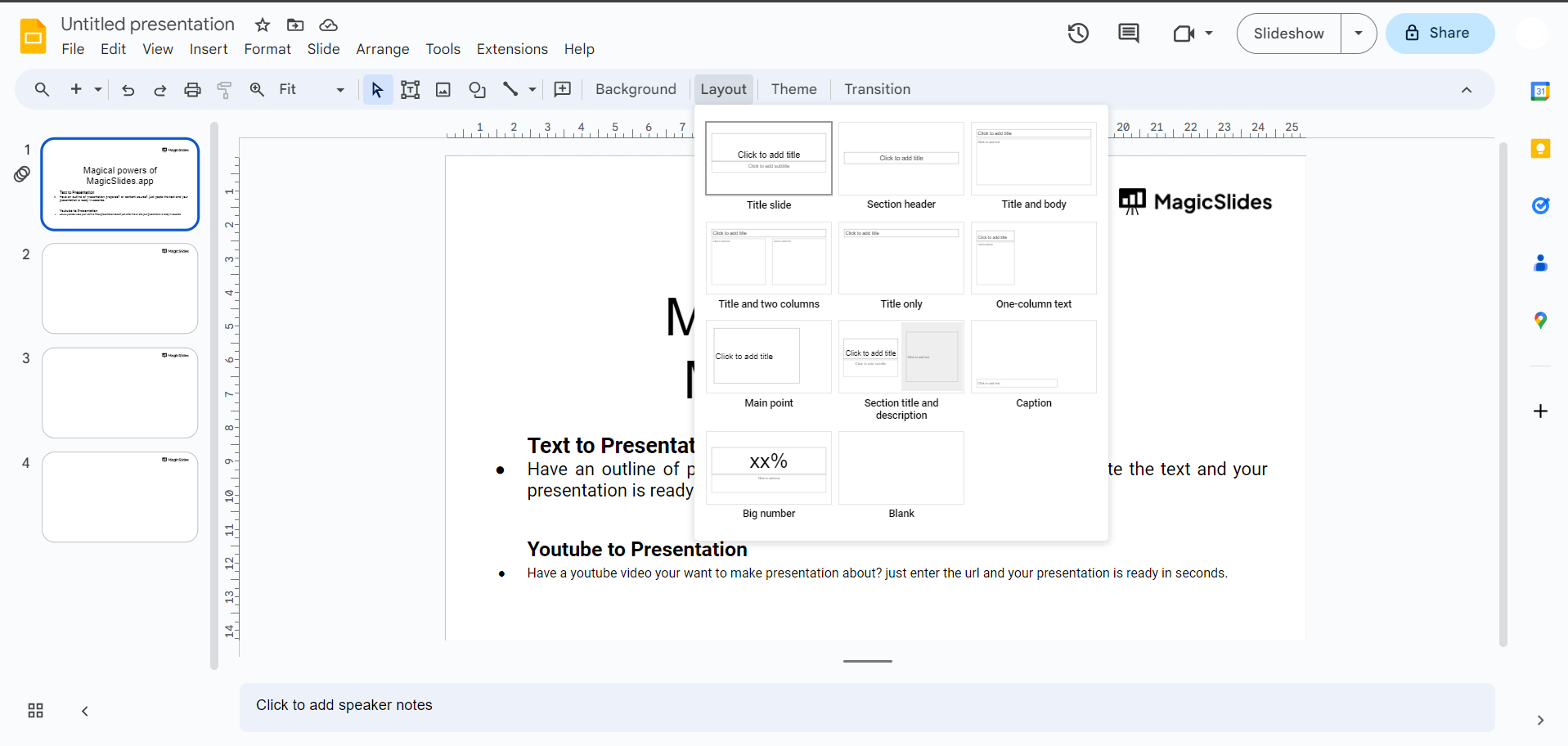
Carefully choose a layout that aligns with your content and communication goals. Options typically include title slides, content slides, and blank slides. The right layout provides a visual framework that complements your message.
Apply the Layout:
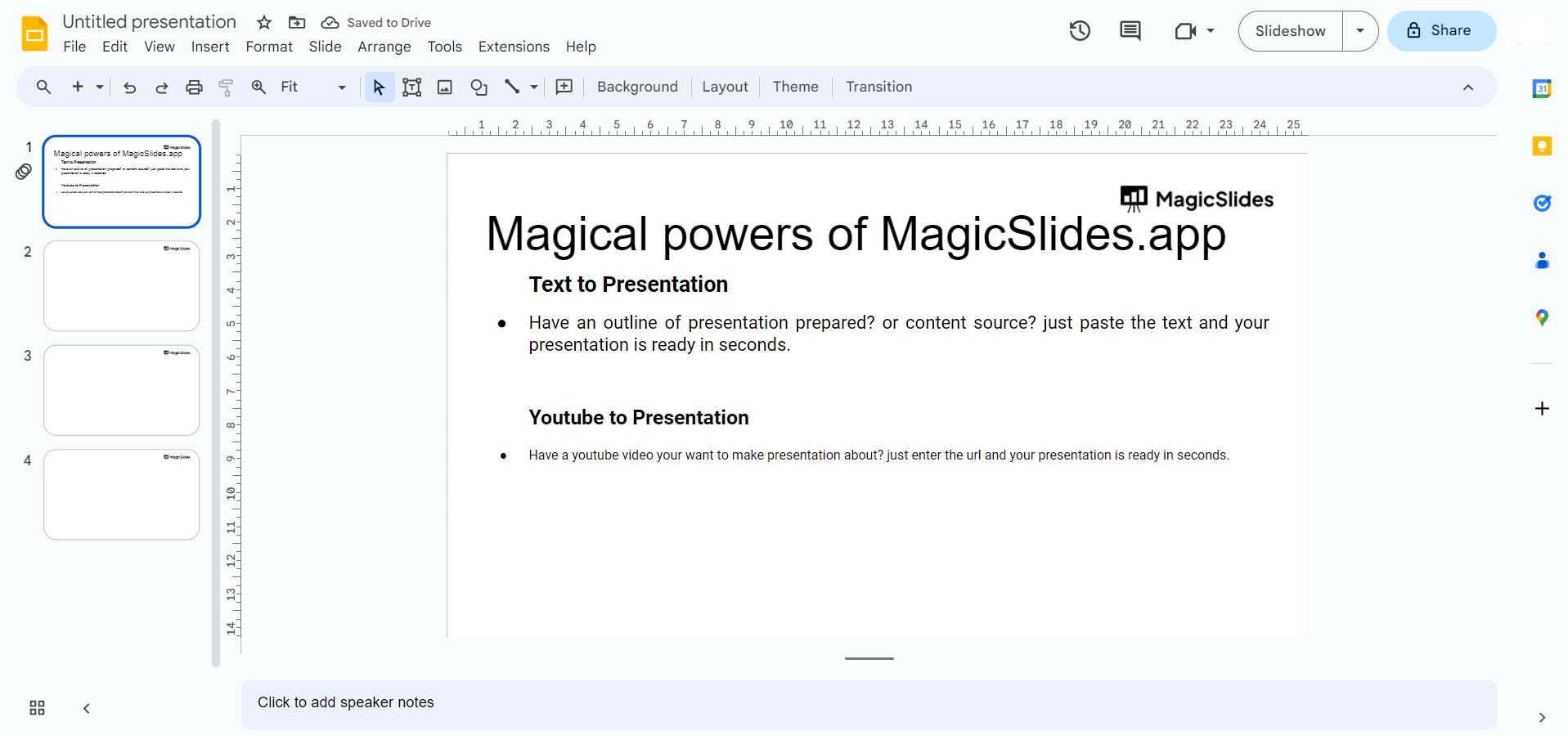
Click on the chosen layout, and watch as your selected slide transforms to adopt the new design. This step not only organizes your content but also establishes a consistent visual language throughout your presentation.
Repeat if Necessary:
If your presentation demands uniformity, select multiple slides in the left sidebar. By holding down the appropriate key (Ctrl or Command) while clicking, you can apply the same layout to multiple slides at once.
Adjust Content:
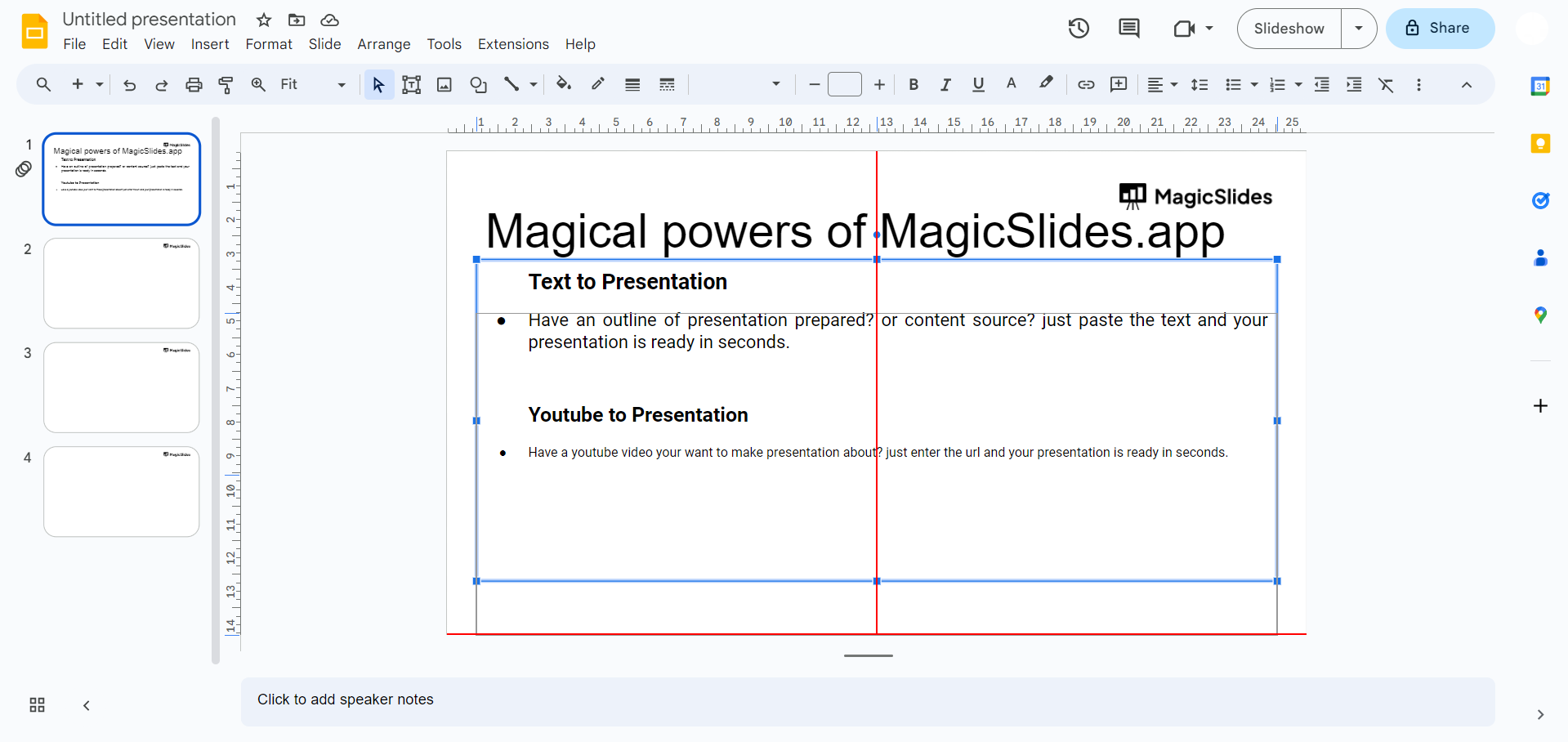
Post-layout application, fine-tune your presentation by customizing placeholders. Click on titles, text boxes, or any designated areas to add, edit, or refine your content. This step ensures that your information aligns seamlessly with the chosen layout.
Save Your Changes:
Before concluding your work, remember to save your presentation. While Google Slides automatically saves your progress, confirming your changes ensures that your efforts are preserved.
Conclusion:
By integrating these steps into your workflow, you not only efficiently apply layouts in Google Slides but also contribute to the creation of a visually coherent and engaging presentation. Whether you're conveying complex data or telling a compelling story, leveraging layouts enhances the overall impact of your message.
Frequently Asked Questions:
Can I Modify the Content After Applying a Layout?
Ans: Absolutely! After applying a layout, click on placeholders to customize and refine your content.
How Do I Create a Custom Layout in Google Slides?
Ans: Currently, Google Slides doesn't support custom layouts, but you can customize existing layouts extensively.
Will Applying a Layout Change Fonts and Colors in My Presentation?
Ans: No, applying a layout doesn't automatically change fonts or colors. You can customize these separately.
Have a look @these informative blogs by us:
- How To Create PPTs For Seminar Topics From Website URL: https://www.magicslides.app/blog/how-to-create-ppts-for-seminar-topics-from-website-url
- How To Convert A Research Paper PDF To PowerPoint Slides?: https://www.magicslides.app/blog/how-to-convert-a-research-paper-pdf-to-powerpoint-slides
- How To Remove An App From Slack: https://www.magicslides.app/blog/how-to-remove-an-app-from-slack
- How To Convert Blog Post To Presentations: https://www.magicslides.app/blog/how-to-convert-blog-post-to-presentations


